Drop Help
Drag recordings into your DAW
Drop on Mac lives in your menu bar. It shows the recordings you made on your iPhone, and you drag them straight into Logic, Ableton or any other app that takes audio files, or into a Finder window.
Find Drop on your Mac
Drop has no main window. Look for the "dp" icon in the menu bar at the top of your screen and click it to open your recordings. The first time you open Drop, a welcome window points to the icon.
In Drop's settings (the gear button), you can turn on Launch at login so Drop is always ready, and Show in Dock if you'd like a Dock icon too.
Your Mac needs to be signed in to the same iCloud account as your iPhone. New recordings appear shortly after they finish uploading from your iPhone. How Drop works explains the details.
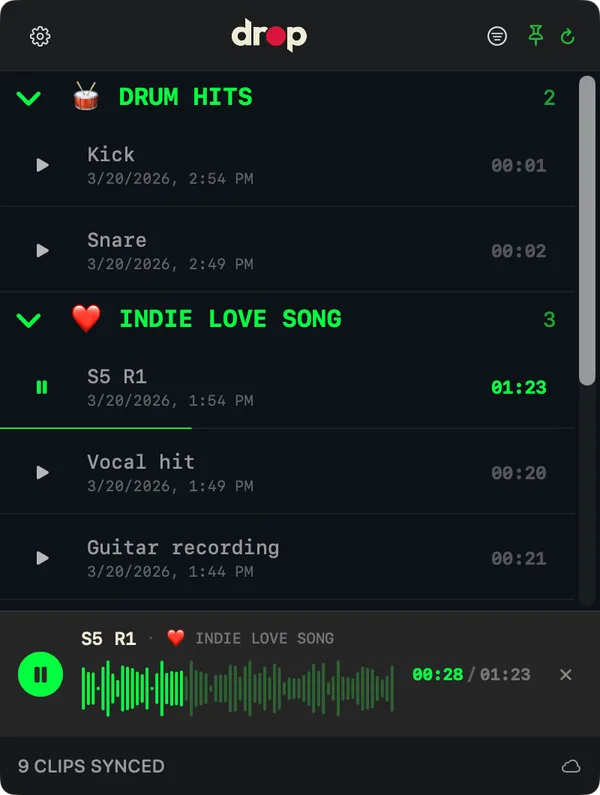
Your recordings in the Mac menu bar.
Choose an export folder first
When you drag a recording out of Drop, Drop writes an audio file and hands that file to your DAW. Your DAW project then points to that file. If the file is somewhere temporary, the project can lose it later.
Choosing an export folder avoids that. Drop writes every dragged file there, and the files stay put.
- Open Drop from the menu bar and click the gear button.
- Under Export Folder, click Choose Folder.
- Pick a location. Your Music folder is a good choice.
Drop creates a folder called "Drop" inside the location you pick. Inside it, each Drop folder gets its own subfolder, so takes from the same song stay together.
Files in the export folder are yours
The export folder holds copies for other apps. Drop never deletes or moves files in it, even when you delete a recording or switch to a different export folder. Drop keeps its own copy of every recording separately, for playback and sync.
Drag a recording into your DAW
- Click the "dp" icon in the menu bar.
- Drag a recording from the list into a track in your DAW, or into a Finder window.
To drag several at once, Command-click or Shift-click to select them first, then drag the selection.
Drop marks recordings you've dragged out, so you can see which ideas you've already used. To change that mark yourself, right-click a recording and choose Mark as Dropped or Unmark as Dropped.
If you drag the same recording again in the same format, Drop reuses the file it already exported instead of making a duplicate.
WAV or Original
In settings, under Export Format, choose what kind of file Drop gives your DAW:
- WAV is the recommended choice. It keeps your recording's full 24-bit depth, and DAWs can import it without converting it.
- Original exports the file exactly as recorded, as an .m4a.
File names
Under Export Filename, choose Include Folder to name files like "[folder] recording title", or Title Only to use just the recording's name. Include Folder helps inside a DAW, which usually shows the file name but not the folder it came from. The setting applies to new exports. Files you've already exported keep their names, so renaming a recording in Drop won't break a DAW project.
Other things you can do
Right-click a recording in the list to:
- Rename it. The new name syncs to your iPhone. A file you've already exported keeps its old name, so DAW projects that use it still find it.
- Choose Export Copy to Folder, to write the file without dragging it anywhere.
- Choose Show in Finder, to see the exported file.
- Delete it. This deletes the recording on every device. Files already in your export folder stay.
If something goes wrong
Drop says the export folder is unavailable
macOS sometimes stops letting Drop reach a folder it used before, for example after you move or rename it. Open settings, click Choose Export Folder Again, and select the same folder. Drop remembers it from then on.
A DAW project can't find a recording
Your DAW project remembers where each audio file was. If the file moved or was deleted, dragging the recording from Drop again adds a new copy, but the existing project still looks in the old place. To fix the project itself:
- In Drop, right-click the recording and choose Export Copy to Folder, so the file is in your export folder. Show in Finder tells you where it is.
- Open the project. When your DAW says a file is missing, use its option to locate or relink it and pick that file. The option has a different name in each DAW. In Logic, look for the Missing Files dialog. In Ableton, look in the File Manager.
- Save the project.
If you dragged recordings before choosing an export folder, the project may point to a temporary copy that's gone. After you relink it to a file in your export folder, it no longer depends on that temporary copy.
Drop says "Preparing audio…" or won't let me drag a recording
The recording's audio hasn't finished downloading to this Mac. You might see "This take's audio isn't ready on this Mac yet. You can drag it once it's ready." Keep Drop open and online, then try again. Waiting for audio to download has more.
Drop asks me to update to play a recording
The recording was made with a newer version of Drop than the one on this Mac. Update Drop from the App Store to play, export and drag it.
A recording from my iPhone isn't on the Mac yet
Open Drop on your iPhone while you're online so it can finish uploading, and check that both devices use the same iCloud account.
Last updated September 2026.