Drop Help
How Drop works
Drop records your ideas on iPhone or iPad and keeps them in your own iCloud account. If you also have a Mac, the Drop menu bar app shows the same recordings, ready to drag into Logic, Ableton or any other app that takes audio files.
- 1Record on iPhone or iPad
- 2Saved on that device
- 3Uploaded to your iCloud
- 4Downloaded by Drop on your Mac
- 5Dragged into your DAW
You don't need a Mac
Drop works on its own on iPhone and iPad. You can record, organize takes into folders, play them back and share or export them without ever installing the Mac app. The Mac app is there for when you want to get ideas into a production session. See Drag recordings into your DAW.
How your recordings travel
When you stop recording, Drop saves the take on your iPhone straight away. Recording never waits for the internet, so it works with no signal and in airplane mode.
When you're online with Drop open, it uploads your new recordings to iCloud. While Drop is running on your Mac, it checks iCloud for new recordings and downloads them. They then show up in the menu bar list.
All of this goes through iCloud over the internet. Drop doesn't send recordings directly between nearby devices, so being on the same Wi-Fi network or using AirDrop makes no difference. Your devices don't need to be online at the same time: your iPhone uploads a recording whenever it's online, and your Mac downloads it the next time it's online with Drop running, even hours later.

The recorder on iPhone.
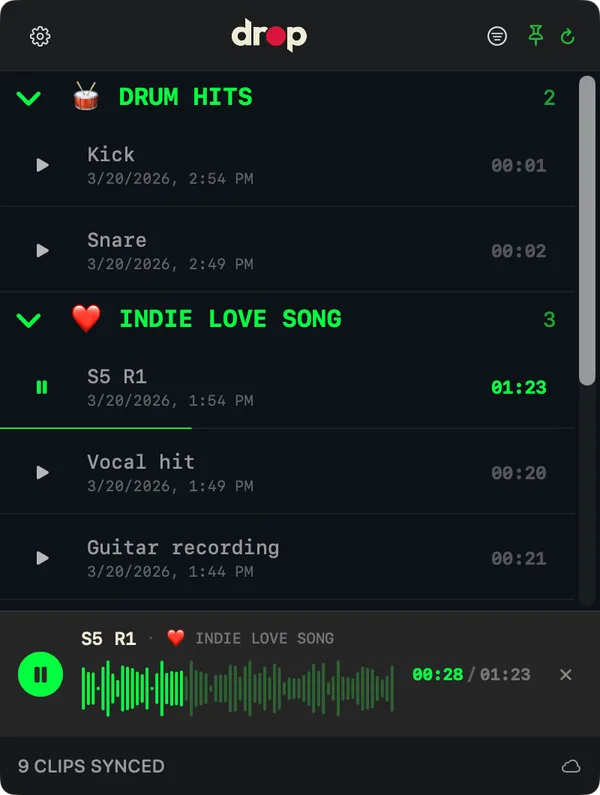
The same recordings in the Mac menu bar.
Use the same Apple Account
Sign in to iCloud with the same Apple Account on every device you use with Drop. You don't need to create a Drop account.
The account you buy apps with can be different from the one you use for iCloud. If recordings aren't reaching your Mac, check the iCloud account in System Settings on the Mac and in Settings on your iPhone.
If you aren't signed in to iCloud, Drop still records. Those recordings don't sync, and the Mac app can't see them.
Where your recordings are stored
Drop keeps your recordings in its own private area of your iCloud account. That area is separate from iCloud Drive, so your recordings won't appear in the Files app, on iCloud.com or in Finder. To see and play them, open Drop.
Getting an audio file
On iPhone, share or export a recording as WAV, AAC or MP3. On Mac, drag a recording into your DAW or into a Finder window. If you choose an export folder in the Mac app, Drop saves those files there and never deletes them. As long as you don't move them, your DAW projects can find them.
Privacy
Your recordings are stored in your iCloud account, which Apple runs. Drop doesn't have servers of its own for your audio, and we can't open what's stored in your iCloud.
Because the recordings live in your iCloud account, they count toward your iCloud storage. If iCloud is full, Drop keeps recording on your iPhone, but new recordings won't sync until you free up space or add more. Keeping your recordings safe explains how to free space on your iPhone without losing recordings.
Keep Drop up to date on every device
Keep Drop up to date on your iPhone, iPad and Mac. A recording made with a newer version may need an update before another device can use it. It may appear in your library but fail to play, export or drag in an older version of Drop. The recording may show an update message, such as:
- "This recording was made with a newer version of Drop. Update Drop to play it." Choose Update Drop to open the App Store.
- "Update Your Other Devices." Your iPhone is reminding you to update Drop on your Mac too.
An update message doesn't mean the recording has been deleted. Update Drop from the App Store on the device that can't use it, then try again. If it still won't play, check that its audio has finished downloading.
Waiting for audio to download
On Mac, "Preparing audio…" means Drop is downloading the recording's audio. Keep Drop open and online, then try playing or dragging it once the download finishes. Download time depends on the recording and your connection.
Requirements
- iPhone or iPad with iOS or iPadOS 18 or later
- Mac with macOS 14.4 or later, if you want the Mac app
- An iCloud account and an internet connection to sync
Last updated September 2026.